

How to cancel a TradingView subscription: web, iPhone, Android and refunds
To cancel a TradingView subscription bought on the website, go to Settings and billing → Subscriptions → Cancel subscription. If you paid through the App Store or Google Play, you cancel in the store – there's no button for it on the website. A paid plan keeps working until the end of the term, but a free trial cancelled on the web stops immediately (as of November 2026).
Contents
- How to cancel a TradingView subscription on the website
- TradingView free trial: how it works and will you be charged
- How to cancel TradingView on iPhone and Android
- Where you subscribed is where you cancel
- TradingView refund: when you can get your money back
- Downgrade instead of cancelling
- Common mistakes when cancelling
- 'Cracked TradingView' and 'lifetime Premium': why to stay away
How to cancel a TradingView subscription on the website
For anyone who paid on tradingview.com by card, PayPal or crypto. Path from the TradingView Help Center.
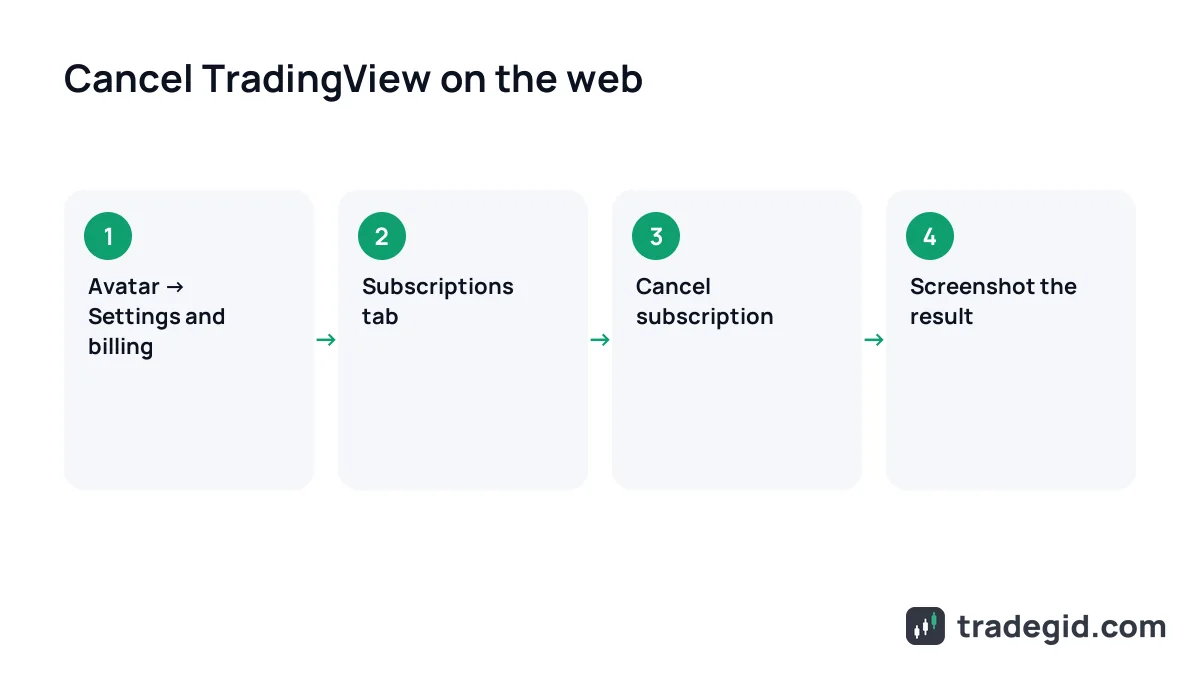
- Open your profile settingsLog in, click your avatar and choose Settings and billing.
- Go to SubscriptionsYou'll see your plan and next billing date. Both the 24-hour deadline and the refund window count from it.
- Click Cancel subscriptionConfirm in the dialog that opens.
- Check and screenshotMake sure auto-renewal is gone and take a screenshot – your best evidence if you're charged anyway.
Cancelling on the web only switches off auto-renewal: you keep access until the paid term ends, and the money for that term isn't refunded automatically.
TradingView free trial: how it works and will you be charged
Yes, unless you cancel. Essential, Plus, Premium and Ultimate all have a Try free button on the pricing page. A trial is a subscription with delayed payment, with its own rules.
- A payment method is needed up front. Starting a trial authorises TradingView to charge your card, PayPal or other method automatically (Terms, 13.1).
- Length depends on plan, region and platform. I've mostly seen 30 days; the exact end date shows at checkout and under Subscriptions.
- It then turns into a paid plan – the monthly or annual billing you picked.
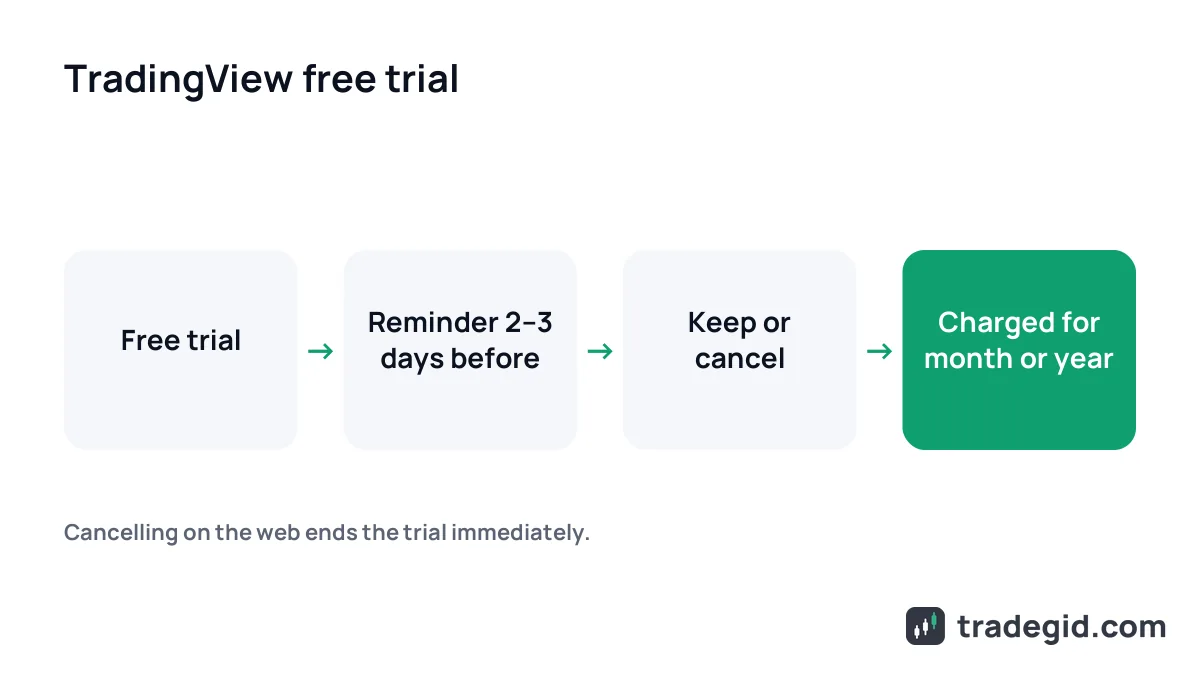
- Cancelling a trial on the web ends it immediately (pricing FAQ and Terms, 13.10).
- One trial per user, but within it you can switch between Essential, Plus and Premium.
The real trap isn't the charge, it's cancelling too early: hit Cancel on day one and you lose the paid features on the spot.
How to use the TradingView free trial the smart way
- Pick monthly billing, not annual: forget to cancel and you pay for a month, not a year.
- Set a calendar reminder for 2–3 days before the trial ends.
- Don't cancel 'just in case' on day one.
- Start on Premium, then after a week switch down to Plus or Essential to see what you actually miss.
Monthly billing plus a calendar reminder is the only 'trial trick' you need – it rules out a surprise annual charge.
There's no published 'discount after trial'. Start the trial on the official website rather than in the app – it's easier to find and cancel later.
How to cancel TradingView on iPhone and Android
If you subscribed in the mobile app, Apple or Google bills you, and the website can't cancel it. Inside the app, App Settings → Subscription only shows your payment and end dates.
iPhone and iPad: App Store
- Open iPhone SettingsThe system Settings app, not TradingView. Tap your name at the top.
- Tap SubscriptionsEvery subscription billed to your Apple ID is listed here.
- Tap TradingView → Cancel SubscriptionScroll down if you don't see the button, then confirm.
If there's no Cancel button and the expiry date is shown in red, the subscription is already cancelled – that's how Apple explains it.
Android: Google Play
- Open Google PlayTap your profile icon, then Payments & subscriptions → Subscriptions.
- Pick TradingViewMake sure it's the Google account you paid with – it may differ from your TradingView login.
- Tap Cancel subscriptionFollow the prompts. Google Play may offer a pause instead – fine if you're away for a month or two.
Android has a subscription pause that the website doesn't: it starts after the current paid period and is managed in Google Play.
In the stores, too, cancel at least 24 hours before the period ends (sections 14 and 15 of TradingView's Terms). Access stays until the end of the paid term.
Paid from India by card or UPI: the e-Mandate catch
Indian recurring payments run on e-Mandates via Razorpay, and the next charge is authorised in advance. Within 24 hours of the charge the site won't let you cancel, so cancel the mandate with your bank before the charge date.
Where you subscribed is where you cancel
| Where you subscribed | Where to cancel | Refund |
|---|---|---|
| tradingview.com (card, PayPal, crypto) | Settings and billing → Subscriptions → Cancel subscription | Via support: annual within 14 days, monthly within 7 days per the Terms |
| App on iPhone or iPad | iPhone Settings → your name → Subscriptions | Only through Apple at reportaproblem.apple.com |
| App on Android | Google Play → Payments & subscriptions → Subscriptions | Under Google Play rules: in the store or via TradingView |
| Free trial on the web | Same place, under Subscriptions | Not needed if you cancel before the charge. Access ends at once |
As of November 2026: TradingView Terms of Use (sections 13–15), TradingView Help Center, Apple and Google Play help pages.
TradingView refund: when you can get your money back
Cancelling doesn't trigger a refund – it only stops auto-renewal. You ask support for a refund (section 13.8), or the store if you paid via App Store or Google Play.
| What you paid for | Deadline to ask | Comment |
|---|---|---|
| Annual plan | 14 calendar days from payment | In both the Terms and the pricing page |
| Monthly plan | 7 calendar days from payment | Per the Terms (13.5), though the pricing FAQ says no |
| Upgrade to a pricier plan | Not refundable | Per the pricing page FAQ |
| Annual market data | 14 calendar days | Minus the current month. Monthly data – no |
| App Store purchase | Apple's rules | Only through Apple |
| Google Play purchase | Google Play rules | In the store or via TradingView |
| After a chargeback or dispute | Not refundable | You lose refund eligibility (13.8) |
As of November 2026: tradingview.com/policies (section 13) and the FAQ on tradingview.com/pricing. Support may consider individual cases outside these windows.
TradingView contradicts itself on monthly plans: the Terms of Use give 7 days, the pricing page FAQ says annual only. The Terms are the contract you accept at payment, so if your monthly charge is under 7 days old, ask and quote section 13.5.
What to write to support
- Cancel auto-renewal with the button first.
- Open a request in the TradingView Help Center with your username, charge date, amount and payment method.
- Quote the rule: 'Please refund my annual plan payment of [date]; the request is within 14 days under section 13.5 of the Terms.'
- Keep it short, no chargeback threats.
A short ticket with date, amount and the section number gets resolved faster than a long complaint.
A chargeback is the last resort: under section 13.8, filing a chargeback or dispute makes you ineligible for a TradingView refund.
Downgrade instead of cancelling
Often the problem isn't TradingView but Premium at $69.95 a month (October 2026 price). Dropping a tier is cheaper than leaving.
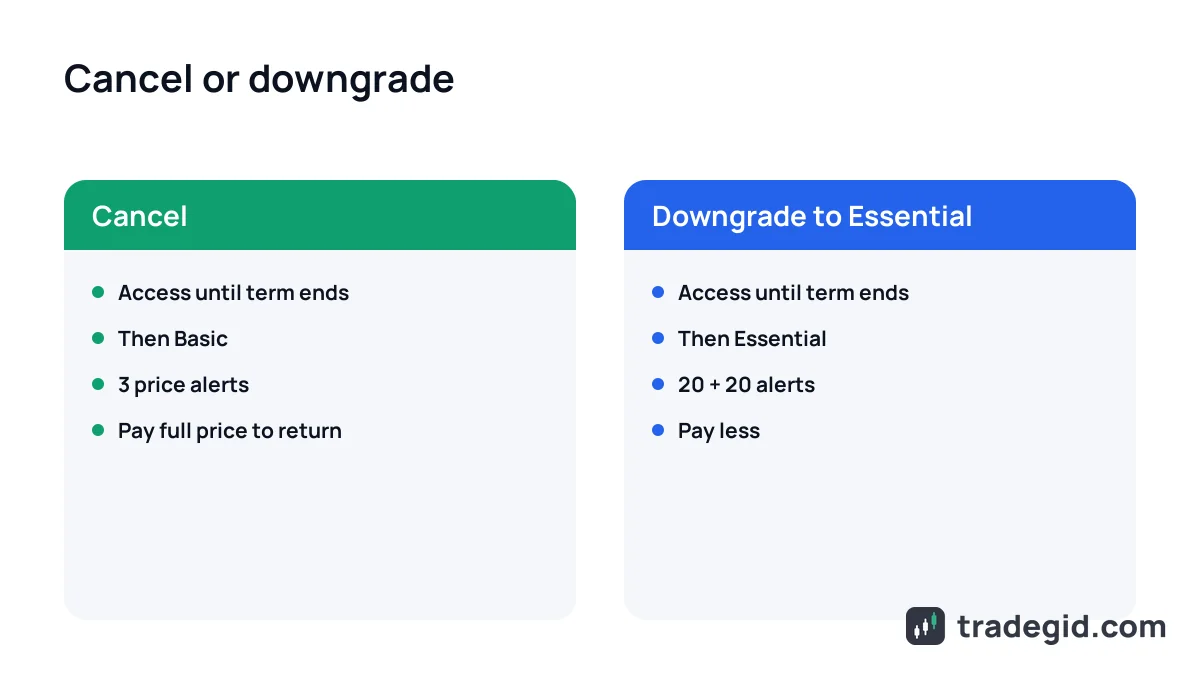
- Downgrade (say, Premium → Essential) kicks in when the current paid term ends, and that's when the new plan is charged.
- Upgrade is immediate: unused days are converted by the price ratio and added to the new plan.
- Switching monthly to annual on the same plan starts only after the current month ends.
- Plain cancel – after the paid term you're back on free Basic: 1 chart per tab, 2 indicators, 3 price alerts.
A downgrade wastes nothing: you finish the term you paid for on the old plan and only then pay less.
That's what I do: after a month on Premium for strategy testing I drop to Essential rather than cancel – I always need the alerts and webhooks. See Essential vs Plus vs Premium and all prices, rupees included, on TradingView plans.
Common mistakes when cancelling
- Deleting the app and assuming that's it. Uninstalling doesn't cancel – Google says so directly, and the App Store works the same way.
- Looking for the button on the website after paying in the app. Store subscriptions are cancelled only in the store.
- Deleting the account first. Cancelling is a separate action, and store subscriptions are billed by Apple or Google anyway.
- Counting on an empty card. If an annual renewal fails, TradingView switches you to monthly (Terms, 13.4) and charges that.
Almost every unwanted charge comes from cancelling in the wrong place or the wrong way. Only the cancel button where you paid works.
'Cracked TradingView' and 'lifetime Premium': why to stay away
Search for free TradingView Premium and you'll find cracked Desktop installers and 'lifetime Premium' sellers. Skip them all.
Legal ways to save: free Basic, a trial with a reminder, and seasonal offers on the official pricing page. If you'll come back later, see what usually happens on Black Friday – cancelling now and buying annual in the sale can be cheaper.