

Capico review: crypto trading terminal with take profit ladders, trailing, bots and a trading journal
Capico is a browser-based terminal for crypto exchanges. You trade on your own Binance or Bybit account, but with stops, a take profit ladder, trailing and stats across all your exchanges at once. I've used it since 2022. This review covers how it works, what is actually useful in it, two simulators where you can open a trade and run a grid, and the honest downsides.
Contents
- Capico in brief
- What Capico is and who it's for
- My experience: why I've kept Capico since 2022
- Capico pricing and the demo account
- How to connect an exchange to Capico via API
- The terminal interface: what's where
- Order types: limit, market and pending
- Stop loss and take profit in Capico
- Take profit ladder: why use multiple take profits
- Trailing stop and trailing take profit
- Breakeven stop, timeout and candle-close stop
- Averaging down and Auto Take Profit
- Capico bots: Accumulate BTC, Accumulate USDT, Reinvest
- Grid bot: long only
- Booster
- Crypto trading journal: stats for all your exchanges in one place
- Telegram bot and using Capico on a phone
- Capico vs 3Commas, CScalp and Finandy: how they differ
- Capico pros and cons
- Glossary: terms you'll come across in Capico
- Bottom line
Capico in brief
- What it is: a browser-based crypto trading terminal with bots and "smart" trades. The developers call it a trading platform with bots.
- Where it works: Binance, Bybit, OKX, Bitget and HTX. You connect an exchange with an API key, and your money stays in your exchange account.
- What it does: stop loss and multiple take profits, trailing, breakeven stop, averaging down, pending orders, a grid bot, Booster and stats across all connected exchanges at once.
- Price: $15 a month, $39 for 3 months, $69 for 6 months, $119 for a year. The demo account is free.
- Discount: through our link you get 15% off all payments for 14 days after sign-up.
I've used Capico since spring 2022 and pay for it out of my own pocket. Below is how it works, what I actually use, where it's awkward and who probably doesn't need it. The screenshots were taken in demo mode so I don't show real balances.
What Capico is and who it's for
Capico is a layer on top of the exchange. You trade on your own Binance or Bybit account, but through the Capico window, where orders get features the exchange either doesn't have or hides three menus deep. On an exchange, for example, the stop and the take profit usually live separately from the entry. In Capico the entry, the stop, several targets and the "what if" rules go into one smart trade, and the terminal manages it from there.
Everything runs in the browser, there's nothing to install. The project launched in beta back in March 2019, and the interface is available in Russian, English and Spanish. The current version at the time of writing is 7.0.
Who it's useful for:
- people who trade on several exchanges and are tired of switching between tabs and apps;
- people who hold trades from a few hours to a few weeks and want profit taken in parts without having to be there;
- people who want to keep a trading journal but aren't willing to type every trade into Excel by hand;
- people who want to try bots without writing code.
Who it won't suit: scalpers who trade off the order book and close trades in seconds. There are specialised terminals for that, and Capico doesn't compete with them. Also anyone who is only buying their first crypto tomorrow: start with the basics, the exchange itself and how futures work.
My experience: why I've kept Capico since 2022
There are three reasons, all very down to earth.
First, I have Binance (spot and futures), Bybit Futures and Bitget connected. Each exchange has its own interface, its own button names and its own stop logic. In Capico there are tabs with balances along the top, I switch between exchanges with one click, and the order form is the same everywhere.
Second, the take profit ladder. I almost never close a position in full at one price. It's usually two or three targets, and after the first one the stop moves to breakeven. On an exchange you have to build that by hand and then make sure the order sizes don't drift out of sync after a partial close. In Capico I set it up once at entry.
Third, notifications. The Capico Telegram bot messages me when a target or a stop is hit or a trade opens. I don't sit in front of the chart, but I know what's happening with the account.
What I don't like: the interface is cluttered in places, and some of the tooltips only make sense if you already know what trailing and timeout mean. That's why below I go through each feature separately and in plain words.
Capico pricing and the demo account
| Period | Price | Per month | Saving |
|---|---|---|---|
| 1 month | $15 | $15 | – |
| 3 months | $39 | $13 | 13% |
| 6 months | $69 | $11.5 | 23% |
| 12 months | $119 | $9.9 | 33% |
Crypto payments only: BTC, LTC, and USDT on BSC and Polygon. Check the network before paying – USDT TRC-20 is not on the list.
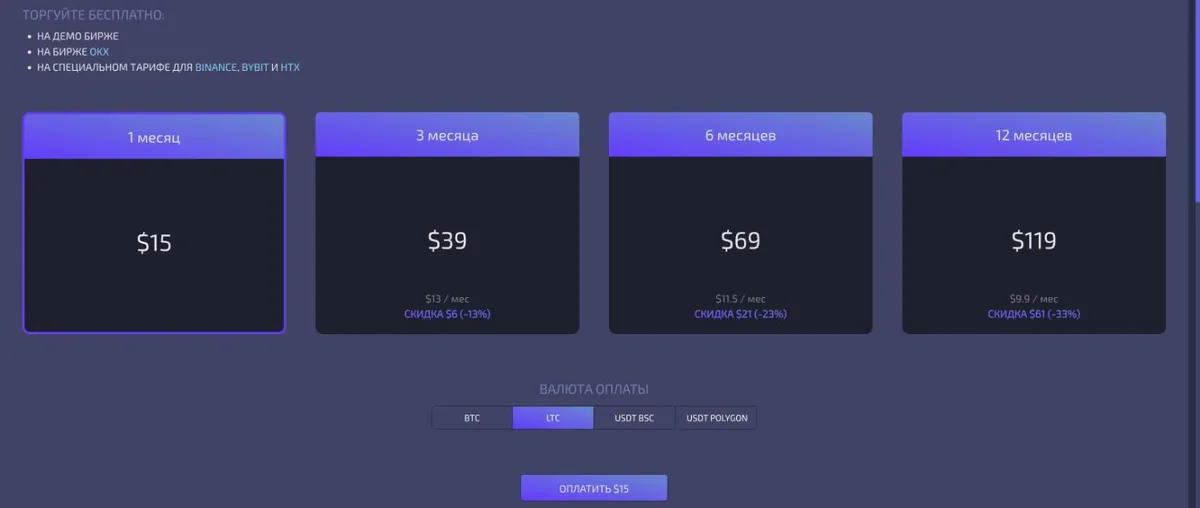
You don't have to pay straight away. Capico has a demo account: a virtual balance and a demo exchange where you can open a trade, set a take profit ladder, play with trailing and see how it all looks. The demo switch is in the top right corner. I'd spend at least a couple of evenings in demo before connecting a real exchange.
Two caveats about the demo. The grid bot isn't available there, because it only works with Bybit futures. And the Booster section works with your real futures account even when demo mode is on, so don't press anything there until you understand what you're doing.
How to connect an exchange to Capico via API
Capico doesn't hold your money. It manages orders on the exchange through an API key, which works like a power of attorney to trade without the right to withdraw funds from the account. Here's how to set it up:
- Create an API key on the exchangeIn your exchange account settings, find API Management and create a new key. Give it a clear name, such as "capico".
- Enable trading onlyYou need read and trade permissions (spot and, if you need it, futures). Never enable withdrawals – Capico doesn't need them.
- Restrict the key to IP addressesExchanges let you limit a key to a list of IP addresses. Capico provides its own list, and on Binance you whitelist those addresses. A key tied to IPs is useless to anyone who steals it.
- Paste the key into CapicoClick "+" in the exchange bar at the top of the terminal, pick the exchange and paste the API Key and Secret. A tab with your balance appears within a few seconds.
- Test with a small amountOpen and close a trade at the minimum size. That confirms the permissions are set correctly and the stop and take profit actually reach the exchange.
If you don't have an exchange account yet, my referral links are below. Each exchange has its own new-user bonuses, shown on the cards. Step-by-step sign-up guides are in the Exchanges section.
New accounts via the link: tasks worth up to 250 USDT; 25% off spot fees paid in MNT.
Sign up on BybitJ8NKMGNew accounts get up to 100 USD in trading-fee vouchers after KYC.
Sign up on Binance58328288New accounts via the link are enrolled in the OKX New User Bonus program automatically.
Sign up on OKXK2FMEIJ3Invited new users get a surprise reward of 5-200 $ after depositing and trading at least 200 $ (in eligible regions).
Sign up on Krakenkypj2dhkThe terminal interface: what's where
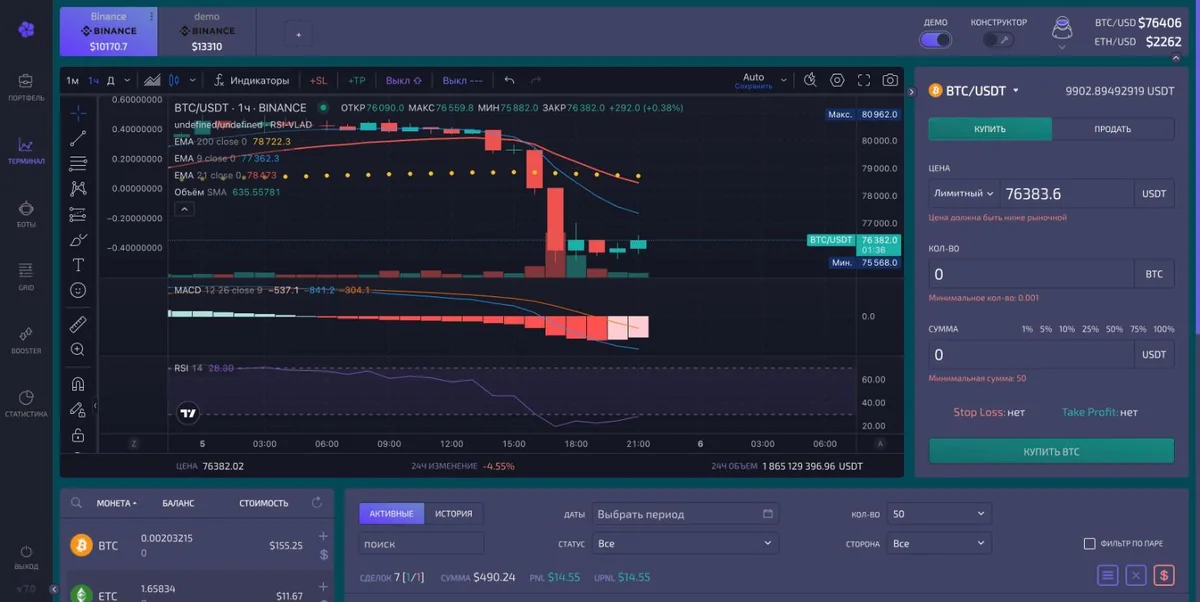
The screen has four areas. At the top are tabs for each connected exchange with its balance. In the middle is a TradingView chart with the usual indicators and drawing tools; on my screenshot it has my own RSI-VLAD indicator on top. On the right is the order form: buy or sell, order type, price, quantity, total and buttons for 1–100% of the balance. At the bottom are coin balances and the trade list, with filters by date, status and side.
Right on the chart there are +SL and +TP buttons, so you can place and drag the stop and take profit levels with the mouse instead of typing numbers. For futures the form adds leverage and a Cross or Isolated margin choice. If those words still put you off, read about leverage and cross vs isolated margin.
Layout builder
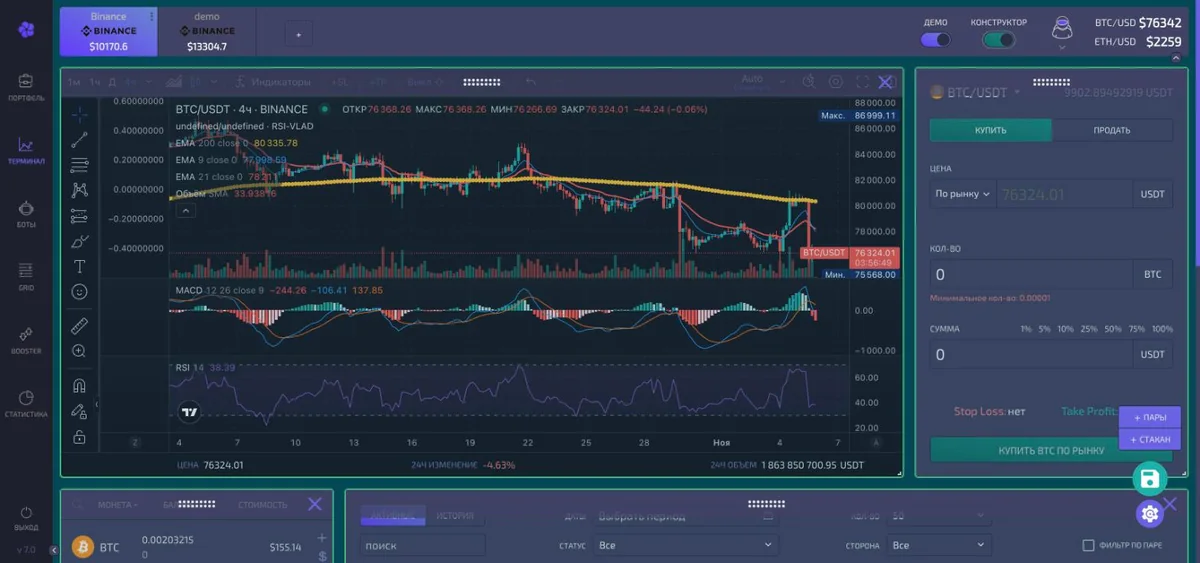
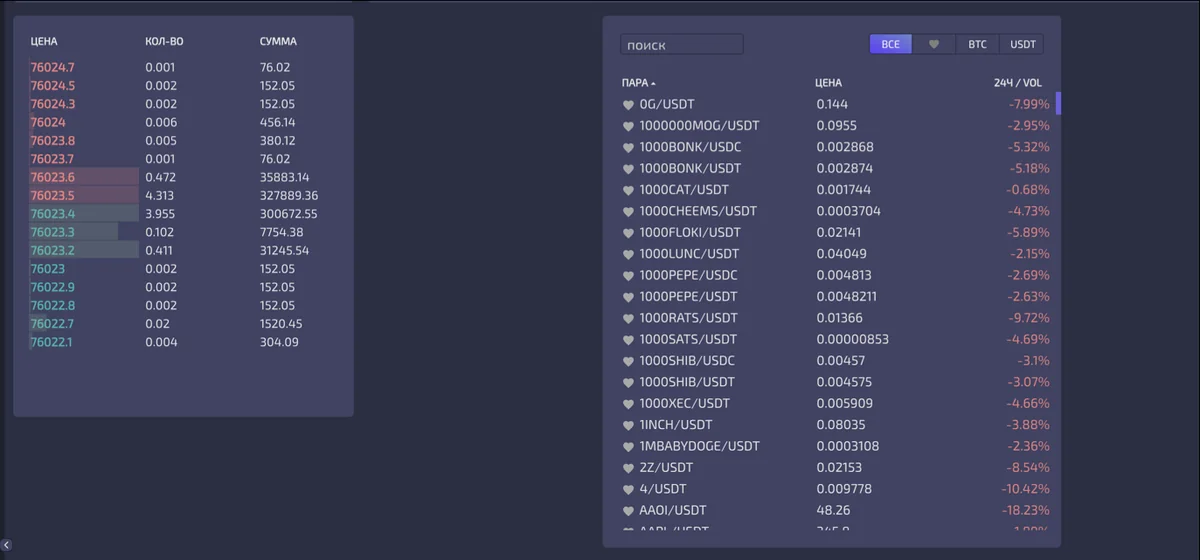
The builder toggle at the top (Конструктор in the Russian UI) lets you drag panels around and resize them. This is also where you can add an order book and a pair list. I added both: the order book shows where the large orders sit, and the pair list has search, favourites and a BTC/USDT filter.
Order types: limit, market and pending
In the order form you switch the type by clicking the field to the left of the price. There are three options.
- Limit. You set a price and the order waits for it in the order book. For a buy the price has to be below market, otherwise the order fills immediately. Limit orders usually cost less in fees because you're the maker.
- Market. Buy or sell immediately at the best available price. Fast, but the fee is higher, and in a thin market the fill price can slip.
- Pending. The order isn't on the exchange yet: Capico holds it and places it when price reaches the level you set. The terminal spells this out: it will be executed when the price is ≤ X. While the order waits, none of your funds are locked on the exchange.
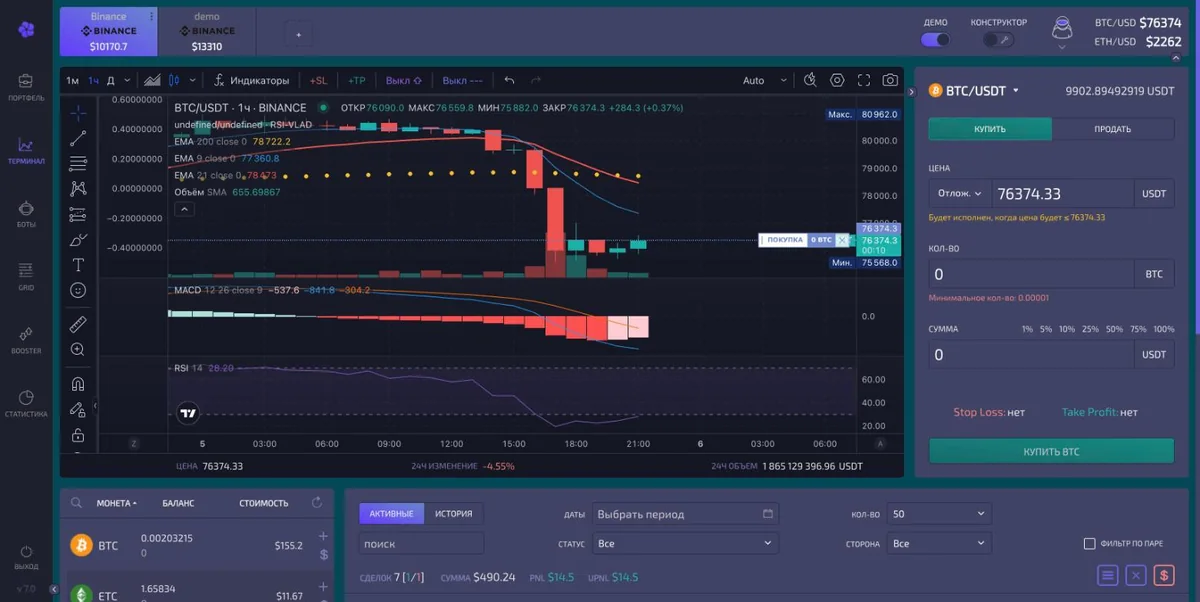
I use pending orders in two cases. The first is a breakout entry: price is sitting at resistance and I only want to buy if it breaks through. The second is when I have little free cash on the exchange but several scenarios in play: the orders don't lock anything until they trigger. The downside is that in a sharp squeeze such an order may not fill at the price you wanted.
Stop loss and take profit in Capico
Under the buy button there are two lines: Stop Loss: none and Take Profit: none. Clicking either one opens a window where you set both levels. You can type in the price or set it with a slider as a percentage from entry. At the bottom the terminal immediately shows the expected loss and the expected profit.
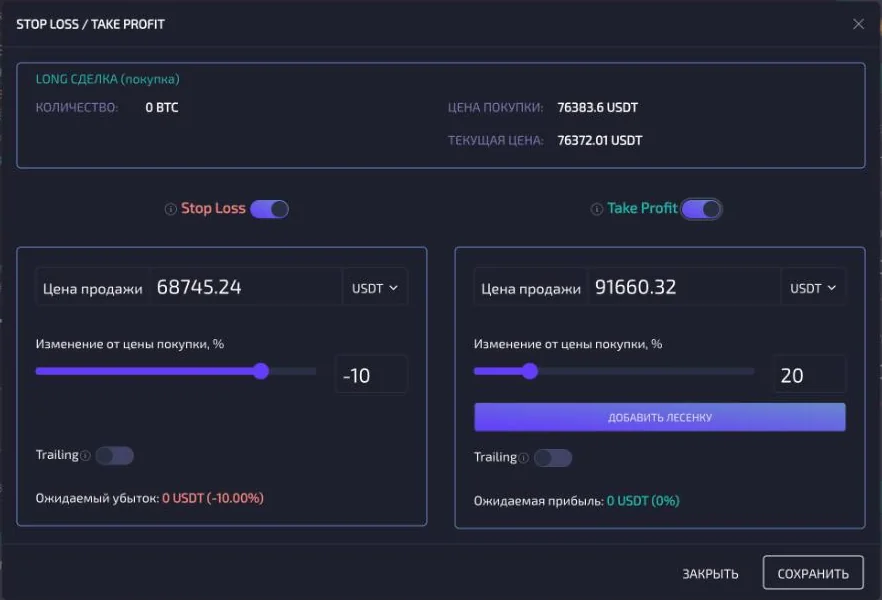
One simple rule I stick to: the stop goes in before the entry, not after. First decide where your idea stops working, put the stop there, and only then work out the size. To size a position for a given risk, use our position size calculator.
Take profit ladder: why use multiple take profits
A take profit ladder means the position closes in parts at several levels instead of all at once at one price. For example, a third at +3%, a third at +6% and the rest at +10%.
A single target looks simpler, but the market almost never goes exactly where you drew it. One target at +10% gives you either the full profit or nothing, when price turns at +9%. A ladder banks part of the profit earlier and keeps the rest in case the move runs further. It's also easier on the nerves: after the first target the trade is already in profit, and holding it is less scary.
| Target | Level | Share of position | Contribution to result |
|---|---|---|---|
| TP 1 | +3% | 33% | +0.99% |
| TP 2 | +6% | 33% | +1.98% |
| TP 3 | +10% | 34% | +3.40% |
| Total if all targets are hit | 100% | +6.37% | |
| If price reverses after TP 1 with the stop at breakeven | +0.99% |
A single +10% target in the same reversal scenario would have given zero or a loss at the stop.
In Capico you turn on the ladder with the add ladder button in the take profit window. For each target you set a level in percent and a share of the position, click add target, and the targets line up in a table. The shares have to add up to 100%, otherwise the terminal won't let you save.
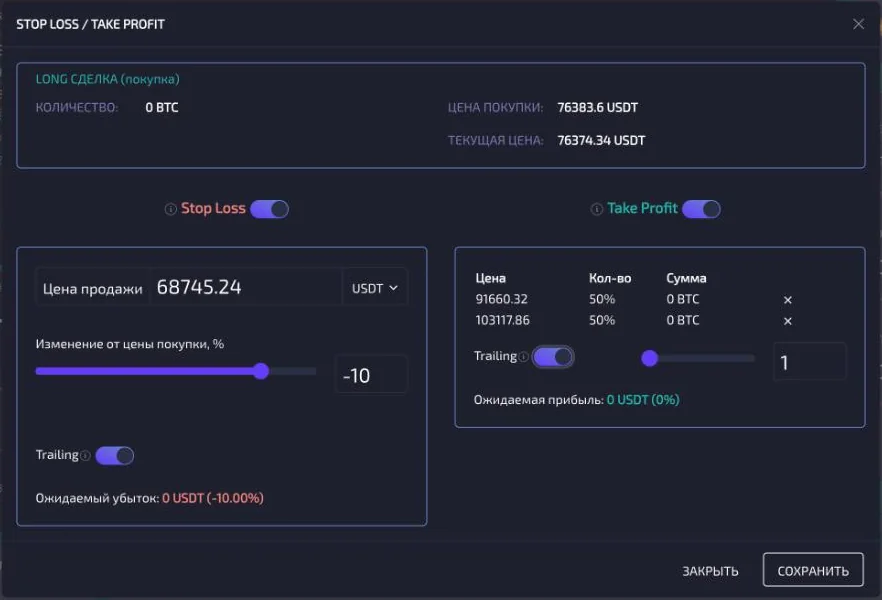
Try it yourself. This is a simulator: choose where the market goes, set the stop and targets, turn trailing and breakeven on or off, open a long and see what triggers. You can close the trade manually at any point.
Play with the Squeeze scenario: price first drops sharply and then heads up. With a tight stop the trade gets knocked out at a loss and the rally happens without you. That's exactly the situation the stop timeout in Capico is for – more on it below.
Trailing stop and trailing take profit
Trailing means a level that follows the price. It works differently for the stop and for the take profit, so I'll cover both.
Trailing stop loss
A normal stop stays where you put it. A trailing stop moves up behind the price, keeping a set distance from it, and never moves back down. Capico's own tooltip puts it like this: the stop follows the price, staying no more than the set percentage away from it, and sometimes lets you close a trade in profit.
Example. Entry at 100, trailing stop 5%. The stop starts at 95. Price climbs to 120 and the stop moves up to 114. Price turns and drops to 114, and the trade closes at +14%, even though there was no take profit at all.
Where trailing hurts: in a range. Price moves back and forth, the stop moves up on every small rise, and the trade gets stopped out on ordinary noise. If the market is chopping sideways, set a wider distance or don't turn trailing on at all.
Trailing take profit
On the take profit side, trailing works on the last target of the ladder. When price reaches it, Capico doesn't close the rest straight away but starts tracking the peak. It closes once the move stalls and price pulls back from the high by the set percentage.
Example. Last target +10%, trailing 1%. Price hits +10% and keeps going to +16%. Then it pulls back 1% from the peak, and the rest closes at about +14.8% instead of +10%. If price had turned right after +10%, you'd have got a little less than the target, around +9%.
Breakeven stop, timeout and candle-close stop
These three settings live in the editor for an open trade, where the stop and the take profit get extra toggles.
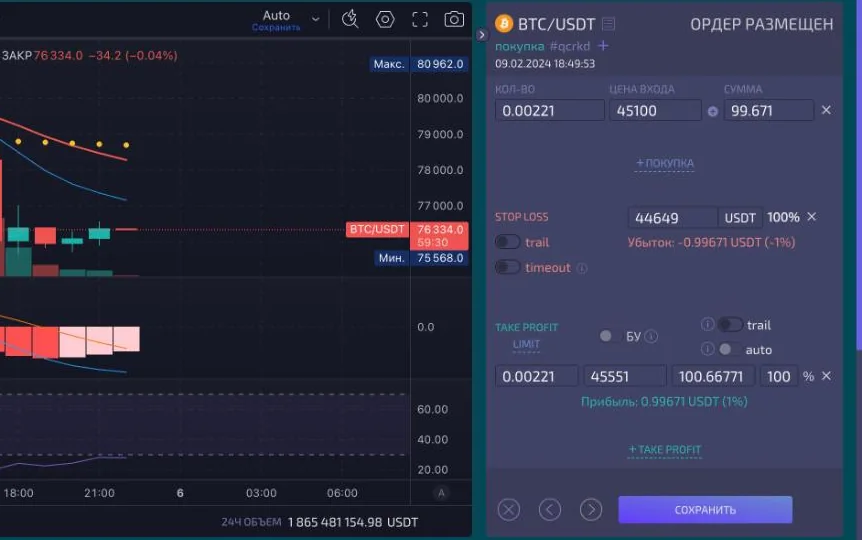
- Breakeven (the БУ toggle). Once the first target fills, the stop moves to the entry price automatically. From then on the worst case for the trade is zero, not counting fees. You need at least two take profit targets and a regular stop, not a trailing one.
- Stop timeout. When price reaches the stop, Capico doesn't close the trade immediately but waits for a set time. If price comes back within that time, the trade stays open. If it stays in the stop zone, the trade closes at market. This protects you from a squeeze, when price gets spiked down for a second, takes out the stops and snaps straight back.
- Candle-close stop. The stop only triggers when a candle on the chosen timeframe closes beyond the level. It's similar to the timeout, except the reference point is the candle close rather than a number of seconds.
Averaging down and Auto Take Profit
Averaging down means adding to a position below the entry price to lower your average price. In the trade editor this is the "+ Buy" button: you can add a market buy or place limit orders below the current price.
The Auto function in the take profit section is tied to averaging: after each filled add-on buy, Capico sets a take profit at the price of the previous buy for a long, or the previous sell for a short. When price bounces back to the earlier entry, that part of the position closes in profit.
A fair warning. Averaging down without a stop is the most common way to lose your deposit. "Buying more of a falling coin" works until the first real bear market. If you average down, decide in advance how many times and for what total amount, and where you take the loss after all. On futures, also check where your liquidation price ends up after all the add-ons.
Capico bots: Accumulate BTC, Accumulate USDT, Reinvest
The Bots section is home to a channel bot. The logic is simple: buy at the lower bound, sell at the upper bound, repeat. You set the amount, the buy level and the sell level, and NEW BUY and NEW SELL lines appear on the chart straight away.
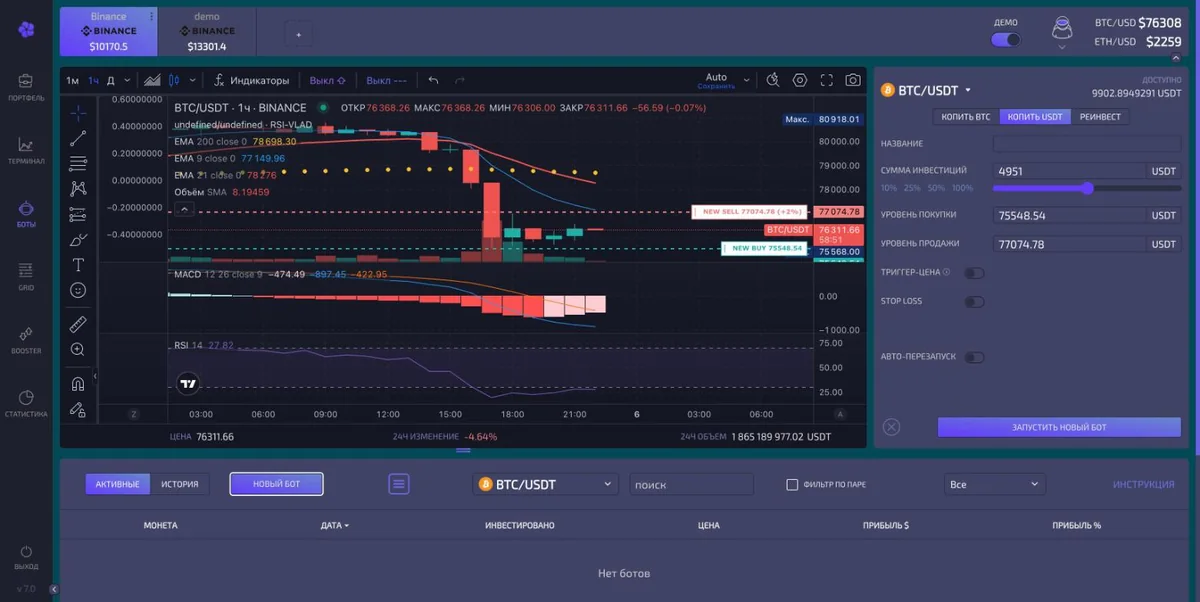
- Accumulate USDT – profit from each cycle stays in dollars. A good fit if the goal is to earn on swings without holding extra crypto.
- Accumulate BTC – profit builds up in the coin. If the coin rises later, you gain more; if it falls, you lose more.
- Reinvest – profit is added to the bot's amount, and the next cycle runs on a bigger size.
- Trigger price – the buy order only appears on the exchange once price drops below the trigger, and is removed if price moves back above it. Capico is upfront that during squeezes these orders don't always fill.
- Stop loss and auto-restart – you can have the bot stopped out by a stop loss, and after a completed cycle it can restart on its own.
Grid bot: long only
A grid bot places limit orders in a grid inside a price range. Price drops to a level and the bot buys. It rises to the next level up and the bot sells that chunk. Each "buy lower, sell higher" pair is called a cycle and brings in a small profit.
The most important thing to know about the grid bot in Capico: it only trades long. The bot makes money when the coin moves sideways or goes up. If price drops out of the range, the bot buys at every level and ends up holding a full position at a loss. At the time of writing the Capico grid bot has no stop loss; the developers say they'll add one later. So only run a grid when you expect a range or a rise, not "just in case".
- Available only for Bybit futures, not in demo.
- You set leverage, margin mode, collateral, lower and upper price, the number of orders and the spacing between them.
- Profit can accumulate in USDT or in the contract. In the contract the risk is higher, and so is the potential profit if the coin rises.
- There's a backtest over the last 30 days: how many cycles the bot would have completed with these settings and what profit and APR it would have made.
- If price is inside the range at launch, the grid orders above the current price are filled at market right away. That's how the bot builds a position for future sells.
The simulator makes the key point easy to see: grid profit grows in every scenario as long as price swings, but the final result comes down to unrealised PnL. In a range it stays close to zero and you keep the grid profit. In a rally the bot sells everything and sits idle, so there is a profit, but a smaller one than if you had simply held the coin. In a drop there is grid profit, but the total is negative, and the loss grows as price keeps falling.
Booster
Booster is a futures tool for entering and flipping a position quickly with market orders. You pick a pair, leverage and an amount, then press UP for a long or DOWN for a short. Press the opposite button and the position reverses without you filling in the form again.
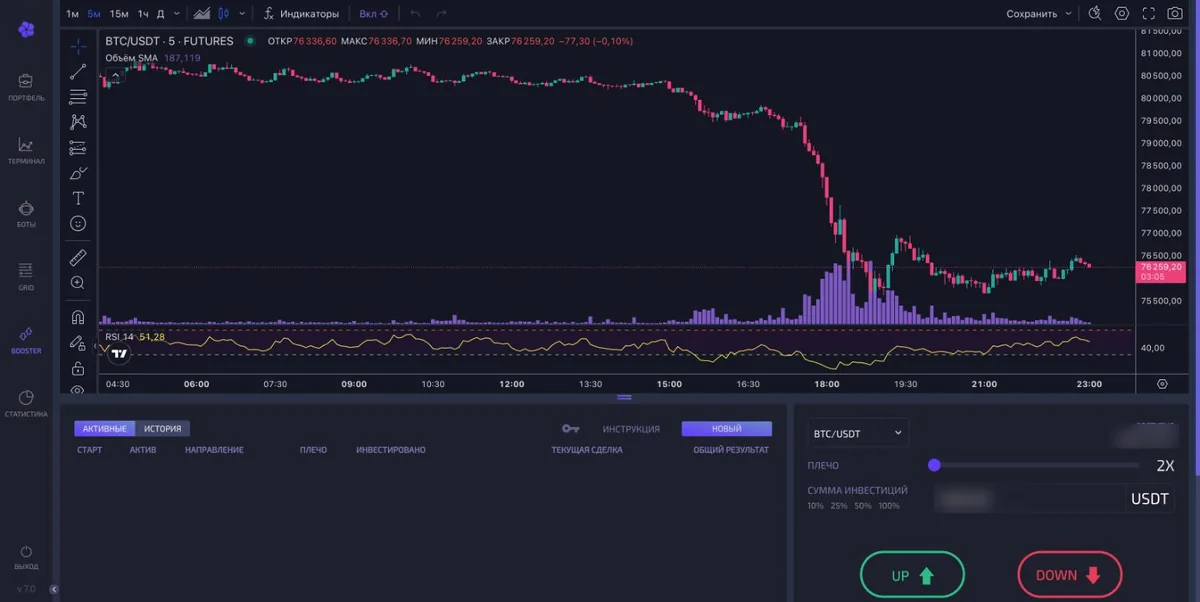
There are two warnings here, and both are serious. Booster changes the leverage on all placed orders for that pair to whatever is set in Booster. And it uses the margin mode selected for the pair in the terminal. On top of that, as I mentioned above, this section works with your real futures account even in demo mode. It's a tool for people who trade actively and know why they want a one-click reversal. A beginner doesn't need it.
Crypto trading journal: stats for all your exchanges in one place
I'd have written this review for this section alone, even if Capico had nothing else. Everyone who trades for more than a couple of months starts a trading journal, and almost everyone drops it, because typing every trade into a spreadsheet by hand is boring. In Capico trades are pulled in automatically via API from all connected exchanges.
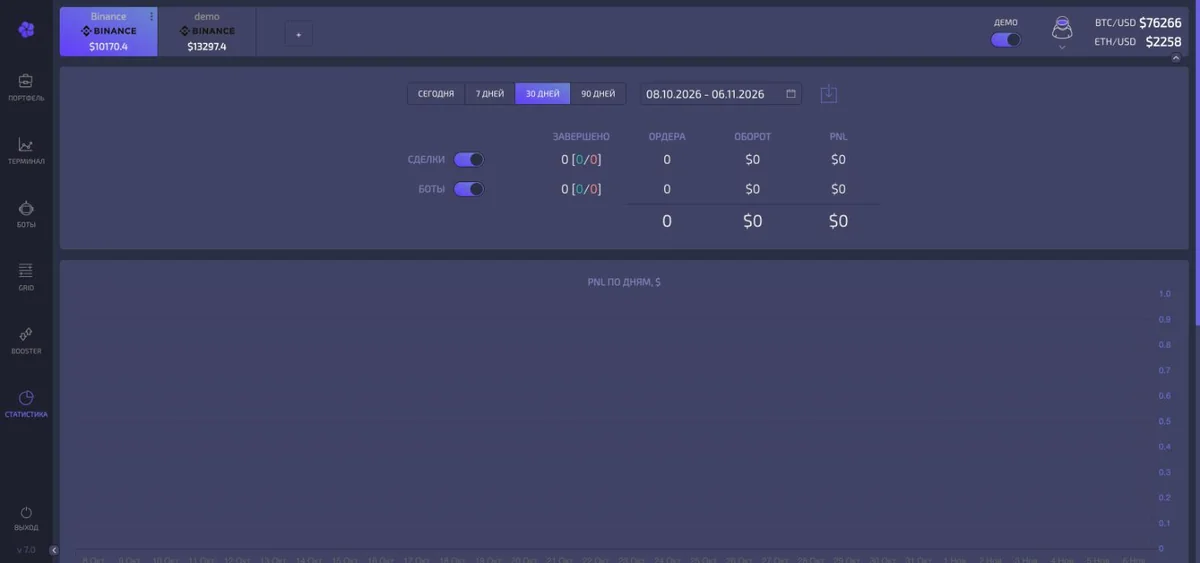
What you get there:
- periods: today, 7, 30 or 90 days, or a custom date range, plus export to a file;
- trades, bots and boosters shown separately: how many completed, how many in profit and at a loss, number of orders, volume and PnL;
- a daily PnL chart and a cumulative profit chart;
- stats for each exchange tab, so you can see where you trade better;
- every trade has its own id and an "add comment" field.
Comments are the most underrated feature. I write one line in them: why I entered. "4h level breakout", "RSI divergence", "entered out of boredom". A month later I sort the history by profit and see which reasons work and which ones keep losing money. Almost all my "boredom" trades are losers. Without a journal I wouldn't have believed it.
How to keep a trading journal in Capico that actually helps:
- One comment line per tradeThe reason for entry and the timeframe. Nothing more, or you'll give up.
- 15 minutes on stats once a weekLook at daily PnL and the share of winning trades. Look for days and pairs where you lose consistently.
- Export once a monthExport your trades and work out the average win and the average loss. If the average loss is bigger than the average win, the problem is your stops, not your entries.
- Compare exchangesSometimes the same strategy gives different results on different exchanges because of fees and liquidity.
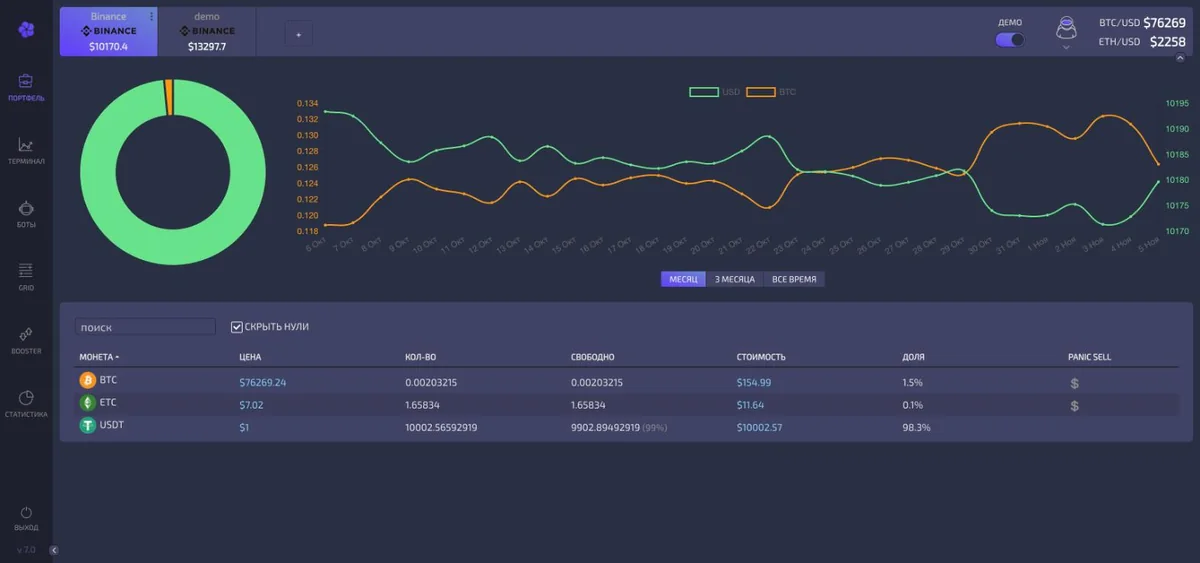
Next to the stats is the Portfolio section: a donut chart of allocations, a chart of portfolio value in dollars and bitcoin, and a table of coins. The last column is Panic Sell, which sells a coin at market in one click. Handy when you need to get out of a position fast and have no time to open the exchange.
Telegram bot and using Capico on a phone
Capico has no separate app, so on my phone I use the browser. The interface is adapted to a small screen, and you can open or close a trade and move a stop. For proper setup of ladders and bots I still sit down at the computer.
The Capico Telegram bot sends trade notifications: opened, target hit, stop hit, closed. That's what lets me stay away from the chart. The first target fills, I see it in Telegram and know the stop is already at breakeven.
Capico vs 3Commas, CScalp and Finandy: how they differ
There's no point ranking them by who is best, because they solve different problems. Here's how I divide them up for myself.
| Capico | 3Commas | CScalp | Finandy | |
|---|---|---|---|---|
| Format | Browser terminal | Cloud bot platform | Desktop app | Browser terminal |
| Main strength | Smart trades, ladders, API journal | Many bot types, large community | Order book scalping | Automation from signals and webhooks |
| Best for | Swing, medium term | Bots, DCA | Scalping, intraday | Signals, automated trading |
| Interface language | RU, EN, ES | EN and others | RU, EN | RU, EN |
| Price | $9.9–15 a month, free demo | Paid plans | Free | Free and paid plans |
Competitors' prices and features change, so check them on the official websites.
In short: if you trade the order book by hand, CScalp. If you want dozens of bots and are ready to learn DCA, 3Commas. If you trade on signals from TradingView, look at Finandy. If you hold trades for hours or days and want ladders, trailing and stats across several exchanges, Capico.
Capico pros and cons
Pros
- Several exchanges in one window with the same order form
- Take profit ladder, trailing, breakeven, timeout and candle-close stop in a single trade
- Trading journal and stats via API, no manual entry
- Free demo account
- Trade notifications in Telegram
- Runs in the browser, interface in English and Russian
Cons
- Only five exchanges
- Not built for scalping
- Grid bot is long only, Bybit Futures only and has no stop loss yet
- Crypto payments only
- Booster works with your real account even in demo
- No dedicated mobile app
- If the exchange API goes down, the terminal can't manage orders either
Glossary: terms you'll come across in Capico
| Term | What it means |
|---|---|
| API key | Access you grant Capico on the exchange. Permissions: read and trade only, no withdrawals. |
| Smart trade | Entry, stop, one or more targets and management rules combined into one trade. |
| Limit order | An order at a set price that waits in the order book. |
| Market order | Buy or sell immediately at the best available price. |
| Pending order | An order Capico places on the exchange once price meets the condition. |
| Stop Loss (SL) | The level where the trade closes with a limited loss. |
| Take Profit (TP) | The level where profit is taken. |
| Take profit ladder | Several targets, each closing its own share of the position. |
| Trailing stop | A stop that follows price at a set distance. |
| Trailing take profit | The last target, which waits for a pullback from the peak instead of closing right away. |
| Breakeven (БУ) | Moving the stop to the entry price after the first target. |
| Stop timeout | A pause before closing at the stop, as protection against wicks. |
| Candle-close stop | A stop that only triggers if a candle closes beyond the level. |
| Squeeze | A sharp price spike that takes out stops and quickly comes back. |
| Averaging down | Adding to a position below entry to lower the average price. |
| Auto TP | A take profit at the previous buy price after each averaging buy. |
| Grid bot | A grid of limit orders: buy lower, sell higher, over and over. |
| Grid cycle | One "buy at a level – sell one level higher" pair. |
| Grid profit | Profit from completed cycles only, not counting the current value of the position. |
| APR | Annual percentage return, extrapolated from the current return. |
| Backtest | Testing bot settings on historical data. |
| Channel bot | A bot that buys at the bottom of a channel and sells at the top. |
| Trigger price | The price below which the bot places a buy order. |
| Booster | Fast market entry and position reversal on futures. |
| Leverage | How many times the position is bigger than the collateral. |
| Cross / Isolated | Whether the whole balance backs the position or only its own collateral. |
| Collateral | The money that backs a futures position. |
| Liquidation | Forced closing of a position when there isn't enough collateral. |
| PnL | Profit or loss. |
| UPNL | Unrealised PnL on open positions. |
| Volume | The total value of all trades over a period. |
| Panic Sell | Selling a coin at market with one button from the portfolio. |
| Order book | The list of buy and sell orders by price. |
| Maker / taker | The maker adds an order to the book, the taker takes it out; their fees differ. |
| Demo account | A virtual balance for practising without risk. |
| Layout builder | A mode where you can move terminal panels around and add new ones. |
Bottom line
Capico won't make money for you. It's a convenient control panel for your exchanges: it won't do your analysis and won't save you from a bad entry. What it does well comes down to three things. It brings several exchanges into one window, it manages a trade by rules you set in advance – with a ladder, trailing and breakeven – and it keeps your trading journal for you.
Start with the demo: open a couple of trades with a take profit ladder, watch how trailing moves, play with the simulators above. If you like it, connect a real exchange with an API key that has no withdrawal rights and start with small amounts.
20% off spot fees paid in BGB; new-user rewards in the Reward Center.
Sign up on BitgetBGGAPKEJNew accounts: a welcome package worth up to 135 USDT for tasks; lower fees paid in GT.
Sign up on GateUVRGV1FXNew accounts via the link: tasks worth up to 250 USDT; 25% off spot fees paid in MNT.
Sign up on BybitJ8NKMGInvited new users get a surprise reward of 5-200 $ after depositing and trading at least 200 $ (in eligible regions).
Sign up on Krakenkypj2dhk